EcoPortal Tools
EcoPortal provides different tools to access, use and manage semantic artefacts including:
- browse the semantic artefacts;
- search for specific classes or concepts;
- browse mappings among terms in different semantic artefacts;
- receive recommendations on which semantic artefacts are most relevant for a given corpus;
- annotate text with terms from semantic artefacts;
- create and edit semantic artefacts with VocBench Editor. All information available through the EcoPortal website is also available through the REST API documentation.
EcoPortal provides different tools to access, use and manage semantic artefacts including:
- browse the semantic artefacts;
- search for a term across multiple semantic artefacts;
- browse mappings among terms in different semantic artefacts;
- receive recommendations on which semantic artefacts are most relevant for a given corpus;
- annotate text with terms from semantic artefacts;
All information available through the EcoPortal website is also available through the REST API documentation.
Browse
The Browser tool allows users to search for semantic artefacts. When opening the browser page (Figure 3), there are two options:
- scroll the full list of semantic artefacts and select one to see more detailed information (Browse all);
- type the semantic artefact name or abbreviation in the Search bar.
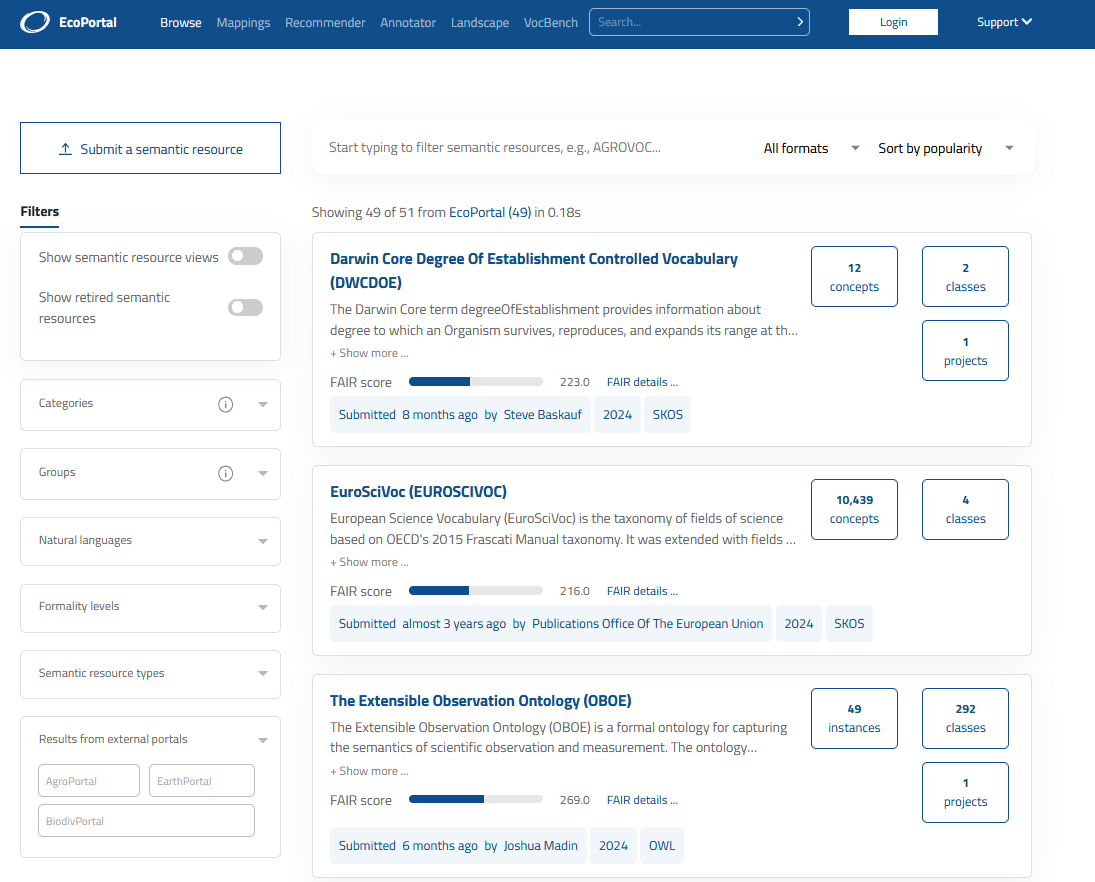
Figure 3: Browser page
In both cases, the search can be further refined by using the filters provided on the left side of the page (Show semantic resource views, Show retired semantic resources, Categories, Groups, Natural languages, Formality levels, Semantic resource types). Upon selecting the filter, the search will be updated to show results which contain the selected filter. Repeat the process to add additional filters.
Moreover, using the tabs on the right side of the search bar, the list of semantic artefacts can be sorted by choosing the type of format (SKOS, OWL, UMLS, OBO) or other desired criteria:
- Name: alphabetical order;
- Classes count: number of classes;
- Instances/concepts count: number of instances or concepts;
- Submitted date: date of last submission;
- Creation date: date of publication;
- FAIR score: O’FAIRe tool score;
- Popularity: number of visits to the semantic artefact;
- Notes: number of notes issued for the semantic artefacts;
- Projects: number of projects where semantic artefacts are used.
To access semantic artefacts through the API, see our Resources REST API documentation.
In the browse page, the “Submit new semantic artefact” button is also available on the upper-left part of the page, but users need to be logged in to perform this operation.
For more information about publishing a new semantic artefact in EcoPortal, please visit the guide.
Search
The Search option allows users to find a term across semantic artefacts by clicking on the arrow pointing to the right in the home page search box and entering free text in the “Enter a term” bar. The system looks for matches in the term name, synonyms, term IDs, and in property values.
The advanced search options can be used to add (Figure 4):
- Property values: named association between two entities. Examples are “definition” (a relationship between a class and some text) and “part of” (a relationship between two classes).
- Obsolete classes: a class that the authors of the semantic artefact have flagged as being obsolete. These classes are often left in semantic artefacts so that existing systems that depend on them will continue to function.
- Semantic resource views: search only ontological views.
Users can also narrow the search by selecting “exact matches” and/or “classes with definitions” or by selecting one or more categories and/or semantic artefacts using the “Categories” and “Semantic resources” fields. In addition, it is possible to perform a broader search by selecting one or more federated OntoPortal instances, namely AgroPortal, BiodivPortal and EarthPortal, from the section “Results from external portals”.
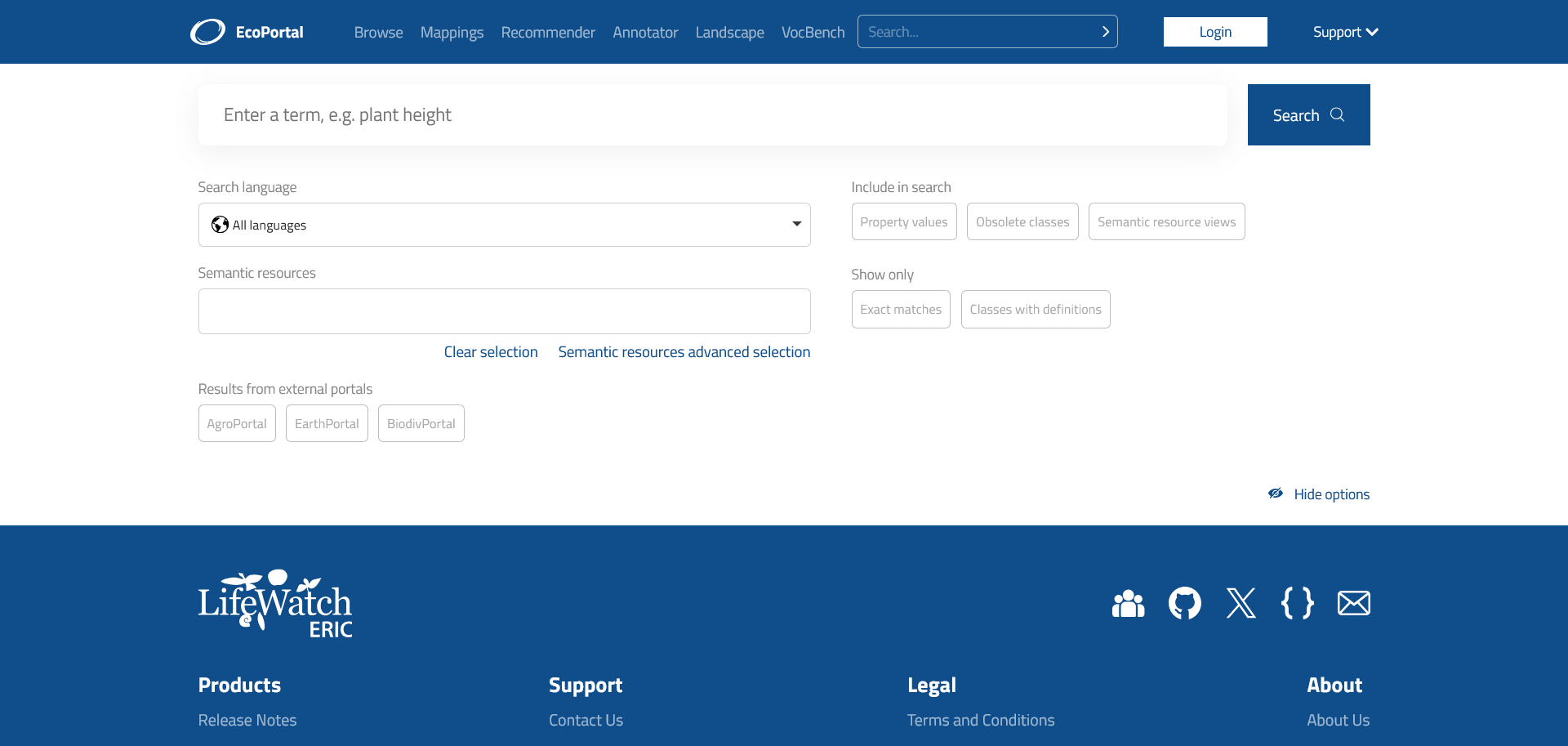
Figure 4: The search tool
To allow better performances, the search result is limited to the top 100 matches.
The search result within EcoPortal will display the matched terms and their associated semantic artefact. For each search result it is also shown:
- details: a window with the associated properties of the searched term;
- visualize: the graph with the nodes of the terms and the path to the root;
- <_number_> _more from this semantic resource_: other similar terms within the semantic artefact are shown.
If a federated search is performed, for each search result it is shown:
- <_number_> _more from this semantic resource_;
- the badge of the OntoPortal instance in which the result can be found.
Search can be done using the API directly. To learn more, see our Search REST API documentation.
Annotator
The Annotator tool enables the generation of annotations by entering or pasting free text in the box and clicking on the “Get Annotations” button (Figure 5).
The system matches words in the text to terms from the semantic artefacts available in the portal by doing an exact string comparison (a “direct” match) between the text and names, synonyms, and IDs of terms within the semantic artefacts. The set of matches can be expanded by including matches from mapped terms and from hierarchical expansion. The system performs the hierarchical expansion on the superclass (“is-a”) relationship for most semantic artefacts, including OWL and UMLS RFF. For OBO semantic artefacts the hierarchical expansion also includes the “part-of” relationship. The “number of levels” can be used to control the number of levels up the hierarchy for which the system will return terms for a given match. For more details about the Annotator tool, please read Shah et al., 2009. To generate annotations from the API, see the REST API documentation.
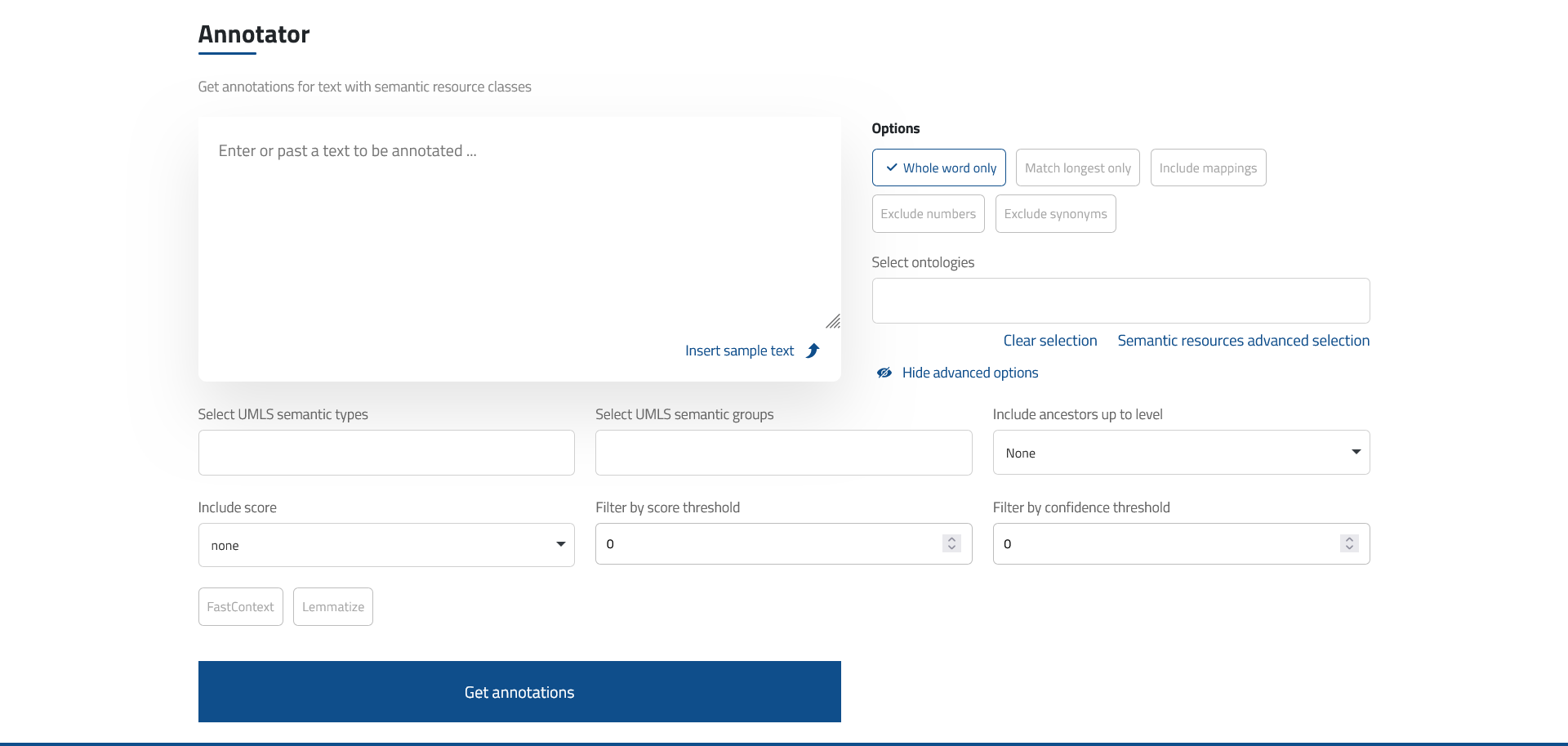
Figure 5: The annotator tool
Mappings
The Mappings tool enables the association of two or more terms in different semantic artefacts, typically indicating a degree of similarity between them. The author of the mapping defines its relation; in addition, although not required, it is usually recommended for a mapping to be bi-directional.
To upload mappings, use the “Upload mappings” button. A valid file format example is available. You can either select the file or drag and drop it into the box.
Mappings can be searched in two ways:
- Find mappings of classes/concepts from the “Bubble view”. Each bubble is a semantic artefact and its size represents the number of mappings available (Figure 6). After selecting two semantic artefacts, a box will appear displaying the mappings between those two artefacts (Figure 7). Select the desired class/concept to view a table with the same information as shown here.
- Browse mappings between classes/concepts in different semantic artefacts from the “Table view” by selecting the semantic artefact from the drop-down menu. The results table will show all the semantic artefacts to which the selected resource is mapped with and the number of existing mappings (minimum one) (Figure 8). Select a semantic artefact from this table to browse the mappings between the two semantic artefacts.
To access mappings from the API, please see our Mappings REST API documentation.
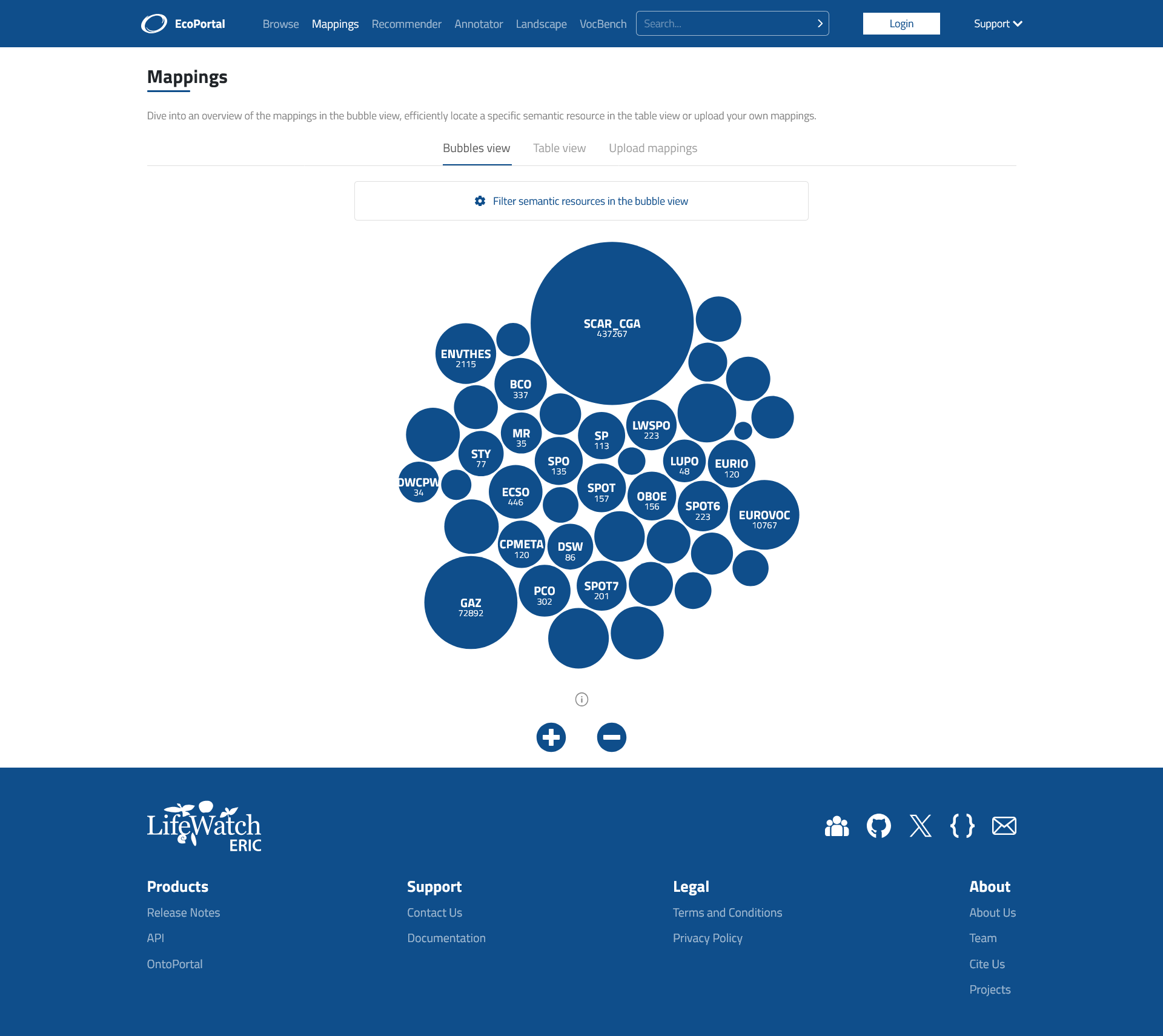
Figure 6: Browse mappings between classes in different semantic artefacts
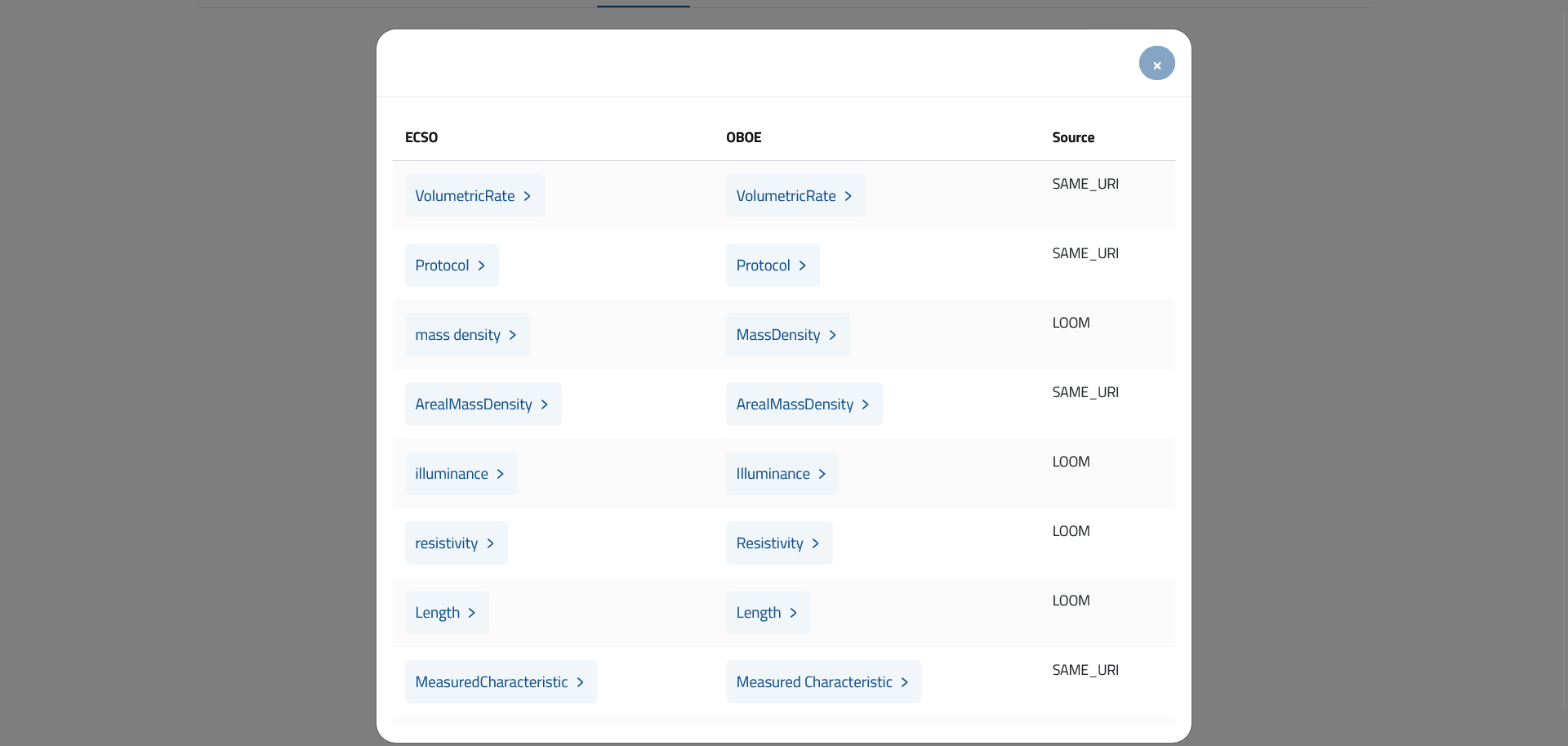
Figure 7: Mappings of a class/concept
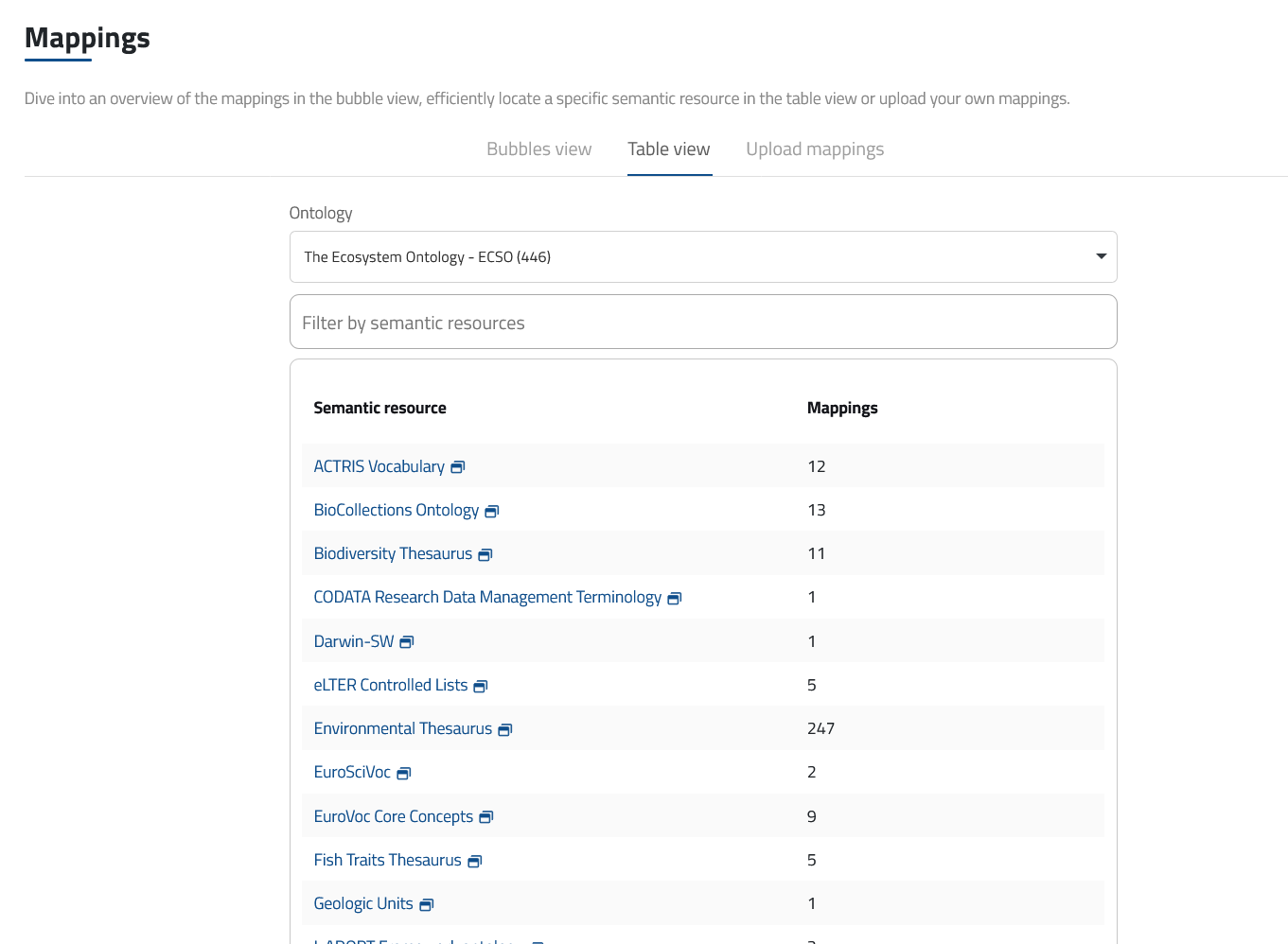
Figure 8: Find mappings of a class/concept
Mapping Sources
Mappings are generated by different sources in two different ways: automatic mappings and user generated mappings. Automatic mappings are generated by the portal from:
- LOOM. This algorithm automatically computes mapping based on close lexical matches between preferred names of terms or a preferred name and a synonym. The lexical match is performed if white-spaces and punctuation are removed from the labels. All labels with less than 3 characters are excluded. These mappings are represented by the mapping relationship “skos:closeMatch”.
- SameURI. Generated between two concepts with the same URI.
- CUI. Generated between two concepts that have the same CUI (Concept Unique Identifier).
User-generated mappings are uploaded and stored within the portal as RESTBackupMapping, namely a mapping added by a user using the REST API (or the UI, which is calling the API to create it).
In addition to these two, skos:exactMatch and skos:closeMatch mappings, available in the semantic artefacts files, are extracted and displayed in the results table. The “type” is indicated as SKOS. skos:relatedMatch mappings present in the semantic artefacts files are not extracted and shown in the table, but they are visible in the “Detail” tab of the class or concept.
For more information on how the mappings are handled inside the triple store, please refer to this documentation.
Recommender
The Recommender tool allows users to find the most relevant semantic artefacts based on text excerpts or list of keywords (Figure 9). The ranking algorithm used by the Recommender evaluates the appropriateness of each semantic artefact available in the portal using a combination of four criteria:
- Coverage: to what extent does the semantic artefact represent the input? The Recommender invokes the Annotator service to obtain all the annotations of the input and then uses these annotations to compute a coverage score for each semantic artefact found.
- Acceptance: how well-known and trusted by the ecological community is the semantic artefact? The number of visits to the semantic artefact page in EcoPortal are used to compute an acceptance score for each semantic artefact found.
- Detail of knowledge: what is the level of detail provided by the semantic artefact for the input data? It is computed using the number of definitions, synonyms and properties of the semantic artefact classes/concepts that cover the input data.
- Specialisation: how specialised is the semantic artefact with respect to the domain of input data? This is calculated using the number and type of annotations performed with the semantic artefact and the position of each annotated class/concept in the semantic artefact hierarchy. The result is normalised by the size of the semantic artefact, in order to identify small semantic artefacts that are specialised to the input data.
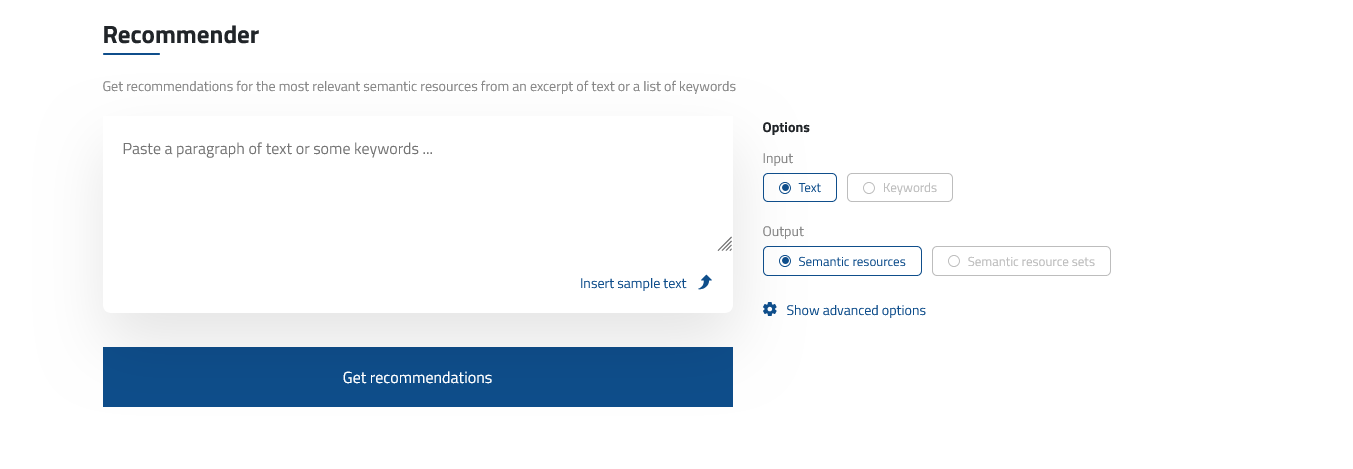
Figure 9: The recommender tool
For each of these four criteria, a score is computed. Then, the scores obtained are weighted and aggregated into a final score for each semantic artefact found. The default weights used to aggregate the scores can be changed in the advanced options section. For more details about the Recommender tool and to cite it, please read the related publication of Martínez-Romero et al., 2017. To retrieve semantic artefact recommendations from the API, please see our Recommender REST API documentation.
VocBench
VocBench is a web-based, multilingual, collaborative development platform, designed to meet the needs of semantic web and linked data environments. It allows to manage OWL ontologies, SKOS(/XL) thesauri, Ontolex-lemon lexicons and generic RDF datasets. VocBench business and data access layers are realised by Semantic Turkey, an open-source platform for Knowledge Acquisition and Management realised by the ART Research Group at the University of Rome Tor Vergata. EcoPortal uses VocBench as an editor tool for managing semantic artefacts with a customised version (v. 13).
User Interface
The user inference detailing the resource being edited on VocBench contains three sections (Figure 10):
a. the Global Data Management
b. the menu
c. the working space that changes based on the tabs selected
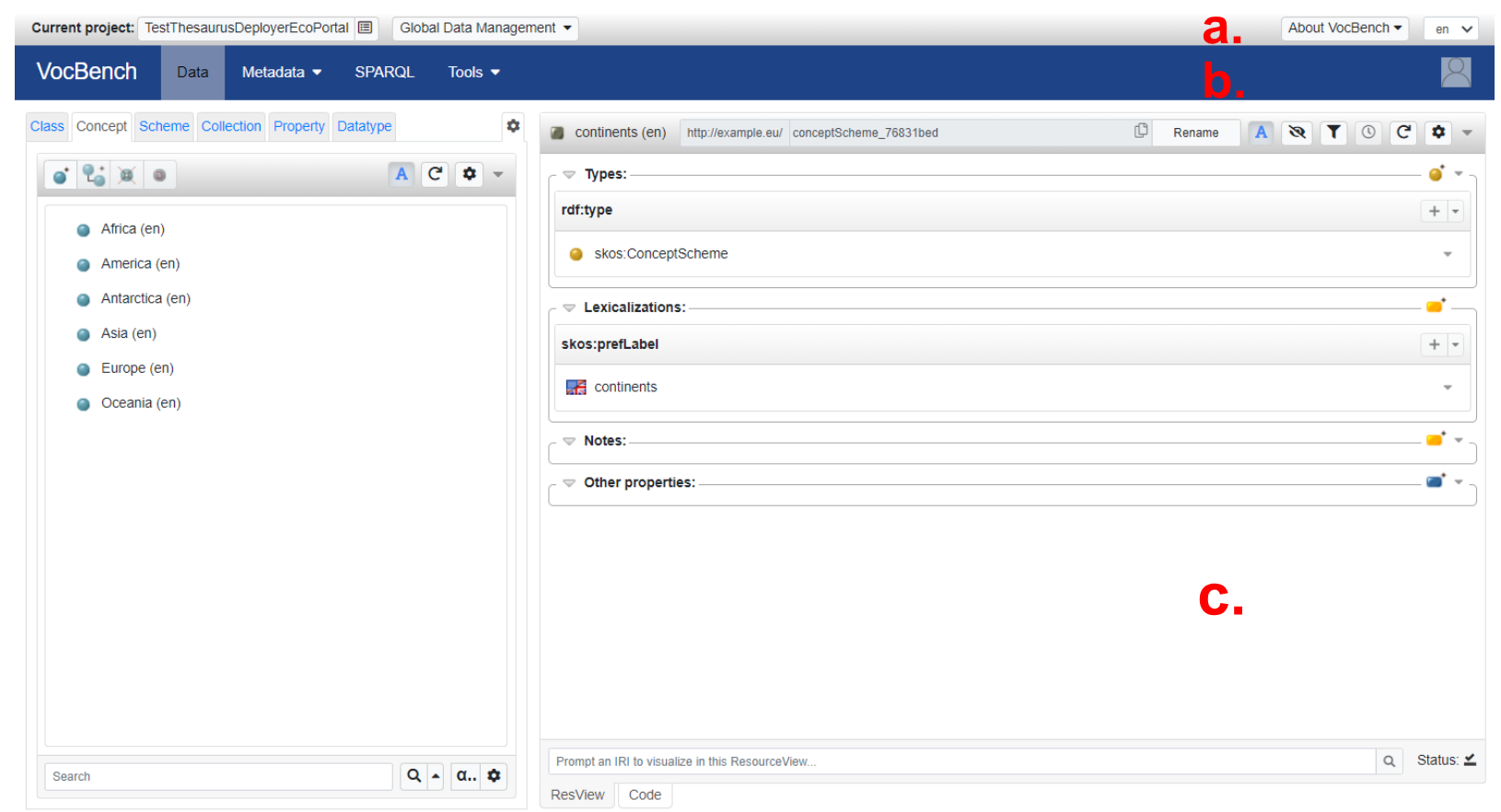
Figure 10: VocBench UI
In the Global Data Management (Figure 10.a) users, depending on their role (for more information please read this), can access to different functionalities (Figure 11):
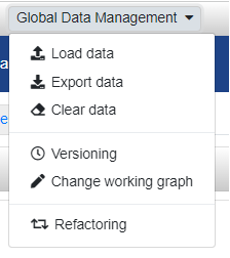
Figure 11: Global Data Management menu
- Load data to upload data that has to be maintained within the project.
- Export data to download or deploy the resource in EcoPortal.
- Clear data to clear completely the project repository.
- Versioning to create time-stamped data dumps of the dataset, that can later be inspected through the same project.
- Change working graph to manage variants of graphs.
- Refactoring to perform massive refactoring of the loaded data.
In the menu section (Figure 10.b), users can access:
- Data which is the main portion in which all the editing of the resource occurs;
- Metadata with a drop down menu which has three entries;
- Namespaces and Import page, allows users to set prefix-namespace mappings, to owl:import ontology vocabularies and to edit the ontology mirror, a local mirror of ontologies stored within VocBench
- Metadata Vocabularies page allows for the specification of metadata according to different existing metadata vocabularies, such as VoID, LIME, DCAT, ADMS, etc.;
- Metadata Registry page, allows authorised users to define a system-wide catalogue of known remote datasets, which are described by means of a combination of (metadata) vocabularies;
- SPARQL enable users to access to the SPARQL query editor of the resource;
- Tools with a drop down menu showing some tools that expand the VocBench core capabilities.
The official VocBench documentation can be found at the following link. For a detailed description of the VocBench version developed within EcoPortal, please refer to the following section.
Note: At the moment, users must register separately to access VocBench and other EcoPortal services.