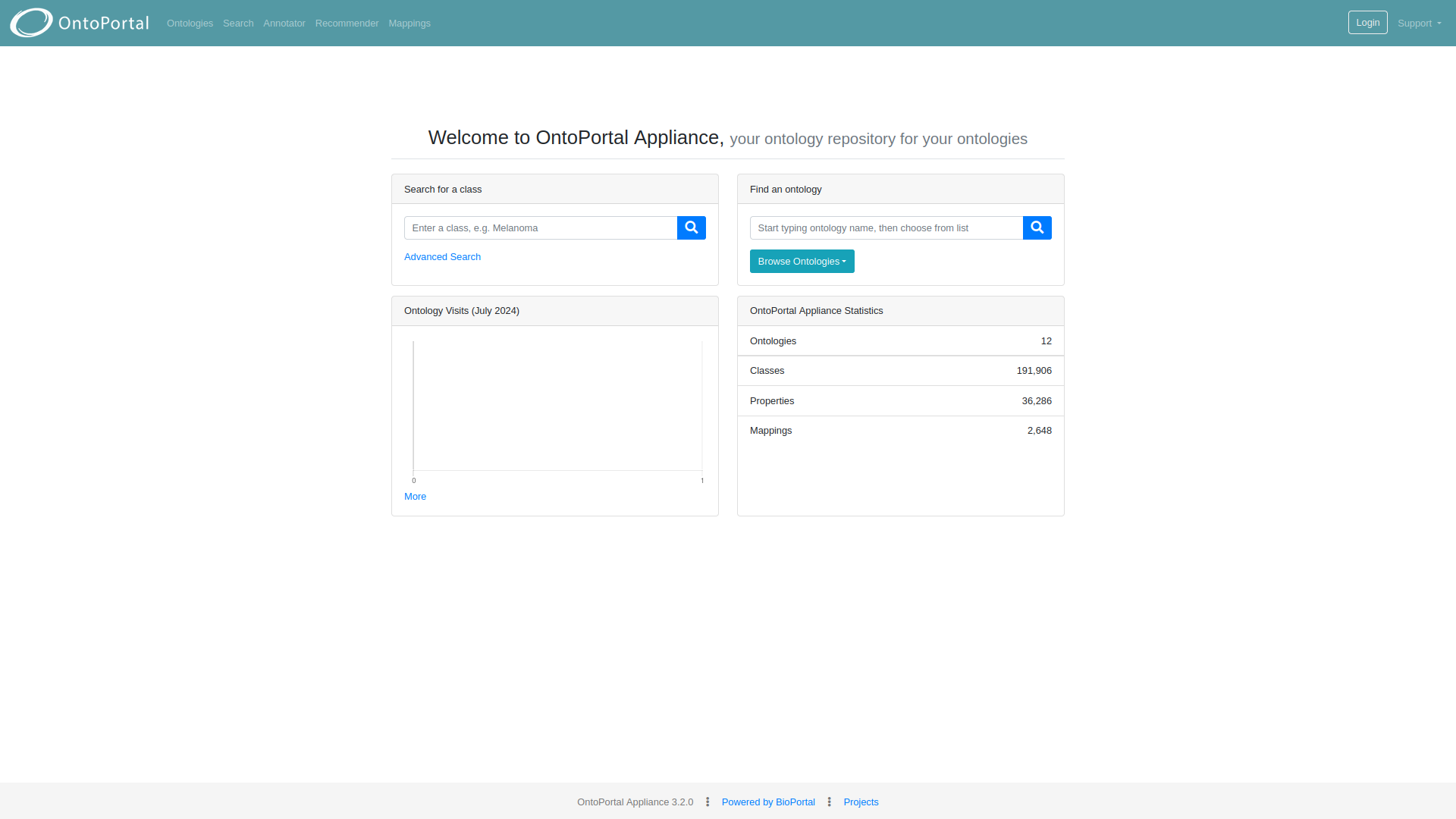
Homepage
The OntoPortal homepage (Figure 1) consists of:
- a header containing the logo on the left and the navigation bar on the right;
- a search bar to quickly search for terms or for semantic artefacts by entering a free text. The autocomplete functionality will support the quest by suggesting terms or semantic artefacts available within the portal;
- some statistical information, provided as bubbles cloud, indicating the number of visits for the EcoPortal semantic artefacts;
- EcoPortal metrics such as number of published resources, number of classes, etc.;
- a recommender and annotator box;
- the O’FAIRe tool with the average FAIR score of the semantic artefacts published within EcoPortal;
- a news box displaying the most recent posts of LifeWatch ERIC;
- the links to other OntoPortal instances;
- the EcoPortal collaborations and support;
- a footer containing additional supporting information and documentation.
Navigation bar
The navigation bar at the top of the homepage contains eighth menu items for navigating within EcoPortal:
- Browse - to search semantic artefacts.
- Mappings - to explore mappings and upload them.
- Recommender - to get recommendations from semantic artefacts’ terms.
- Annotator - to get annotations with semantic artefacts’ terms.
- Landscape - to visualise data retrieved from analyses on semantic artefacts metadata.
- VocBench - to create or edit a semantic artefact.
- Login - to access the login/registration form. Once logged in, username will be displayed here and it will show the access to account setting and “logout” button.
- Support:
- Send Feedback - to request assistance with questions, bug reports, feedback, and so on through an easy-to-use contact form.
- Documentation - to access the EcoPortal documentation.
- Cite us - to find the citation and read the publications related to EcoPortal.
- Release Notes - to read the last release notes.
- Groups and Categories - to find more information about groups and categories available in EcoPortal.

Figure 1: EcoPortal Homepage.
Account settings
In the navigation bar, the Account Settings page can be accessed to view all the account details: personal information, submitted semantic artefacts, mailing list subscription, customisation options and the personal API Key (Figure 2).

Figure 2: Account setting page
O’FAIRe tool
The Ontology FAIRness Evaluator (O’FAIRe) tool is a web service that performs an automatic FAIRness evaluation of semantic artefacts by analysing metadata fields associated with particular questions corresponding to each FAIR principle and sub-principle.
The tool automatically executes the tests and evaluates how the semantic artefacts respond to the questions, providing a global normalised FAIR score associated with some basic statistics. To better understand which are the features of the tool and how the FAIRness evaluation is executed for each semantic artefact, please go here. To learn more about the tool please visit the GitHub page.
Footer
The footer contains all the EcoPortal support links, divided into five sections:
- Products:
- Release Notes
- API
- OntoPortal
- Support:
- Contact Us
- Documentation
- Legal:
- Terms & Conditions
- Privacy Policy
- About:
- About us
- Team
- Cite Us
- Projects
Search and Metrics
The homepage contains the Search and Metrics section that allows to:
- quickly search for terms by entering a class name in the “Search for a class” bar;
- quickly search for ontologies by entering free text in the “Find a ontology” bar. The autocomplete functionality will support the quest by suggesting the ontology available with the portal.
- consult OntoPortal metrics such as number of visits, number of resources published, number of classes, etc.
Account settings
In the navigation bar, the Account Settings page can be accessed to view all the details about the account: personal information, uploaded semantic artefacts, mailing list subscription, customization done to the resources displayed and the API Key.